
Song Editor
Do you want to get creative? There is a song editor available which you can use to create custom songs for the game. The latest version of the song editor is downloadable from our downloads page.
How to use
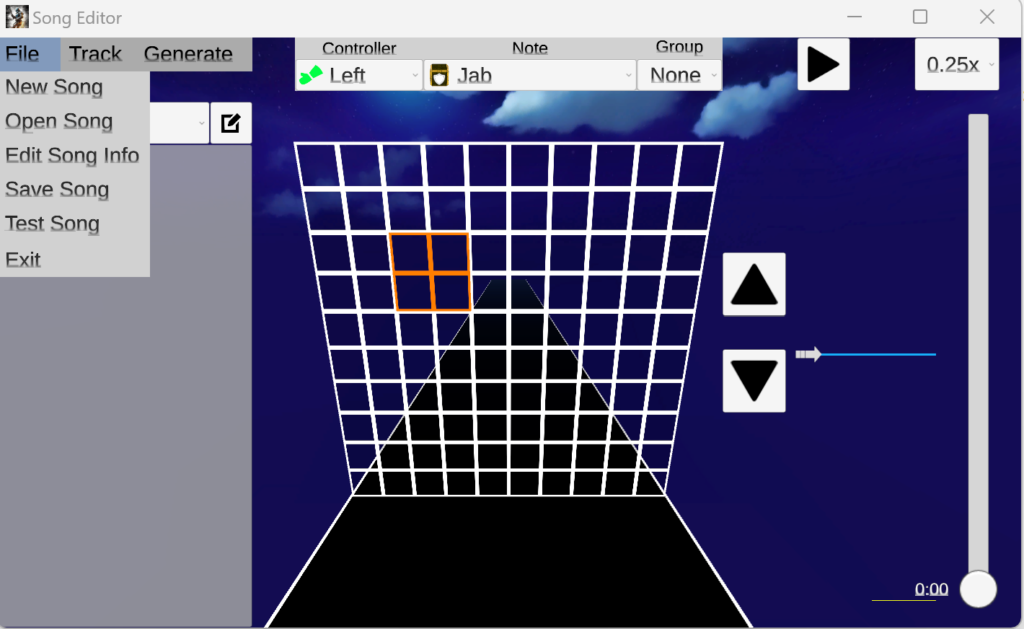
In the File dropdown you have the following options:
- New song: Create a new song folder and track with specified mp3 file. You can also specify the title, artist (of the music) and author (of the song track/beatmap).
- Open song: Opens an existing song folder for further editing
- Edit song info: Opens a popup where you change the metadata of the currently load song
- Save song: Writes/saves the current state of the song track to disk

In the Track dropdown you have the following options:
- New track: Create a new song track for currently loaded song. In the popup you can choose a default track name from the dropdown or a custom name. You can also copy the contents from an existing track by ticking the checkbox.
You can also change the name of the currently loaded song track by clicking the edit button (see red line).
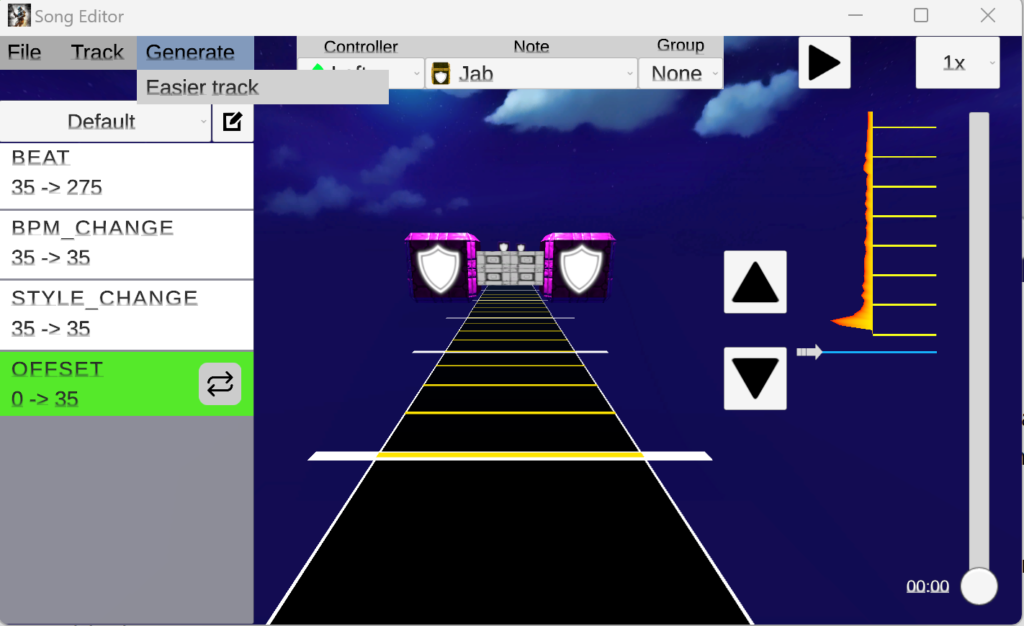
In the Generate dropdown we have the following options:
- Easier track: This generates an easier song track based on the currently loaded song track. The algorithm tries to find the notes that have the closest interval between them en then tries to remove the second note of all note pairs that have that specific interval.

On the left side we have the events view. All song tracks consist of a sequence of track events. The following types of track events are available:
- Offset: Can be used that add a small offset/delay to all the events that are placed after it
- Style change: Can be used to switch to another Warrior Style, the min transition time is set to 3 seconds so player will have time to prepare for the change. (Only exception is the first style change which is instant)
- BPM Change: Change the bpm (beats per minutes). This is the tempo of the beats in the song track. If you don’t know the bpm of the song you can use a BPM analyzer tool (for example: MixMeister BPM Analyzer).
- Beat: These get added automatically based on the BPM Change event. They consists of NoteLines (grid) on which you can place the actual notes.
Each event can also be changed to another type (Except for the first offset, style change and bpm change events) using the replace button (see blue line). When replacing bpm change events the system will try to keep existing notes at the same time position as much as possible which still keeping them on a specific NoteLine. When replacing style change events the existing notes might get changed to the default type of another Warrior Style.
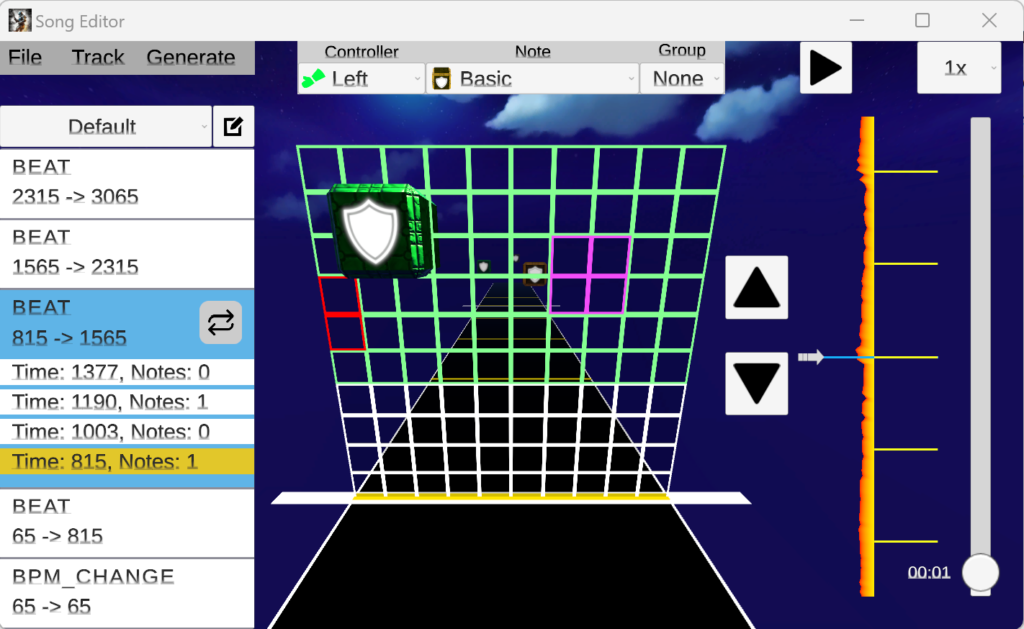
In the top center area we have currently selected note type:
- The controller dropdown specifies whether the note needs to be hit with left or right controller
- The note dropdown specifies the type of note (based on current active Warrior Style)
- The group dropdown specifies the group id for grouped notes, such as Hold notes and Guide obstacles. After placing a HoldBeginNote or GuideBeginNote you can extend the notes on a later NoteLine by choosing “Group” from the note dropdown and then choosing the group id of the “HoldBeginNote” or “GuideBeginNote” from the group dropdown. Group ids for the left controller start with the letter “L” and group ids for the right controller start with the letter “R”.
In the center area we have the note grid on which you can place the actual notes. Green specifies the recommend placement area for current active Warrior Style. Magenta specifies the location of notes on the previous note line. Since humans only have 2 hands a maximum of 2 notes are allowed on each NoteLine/grid.
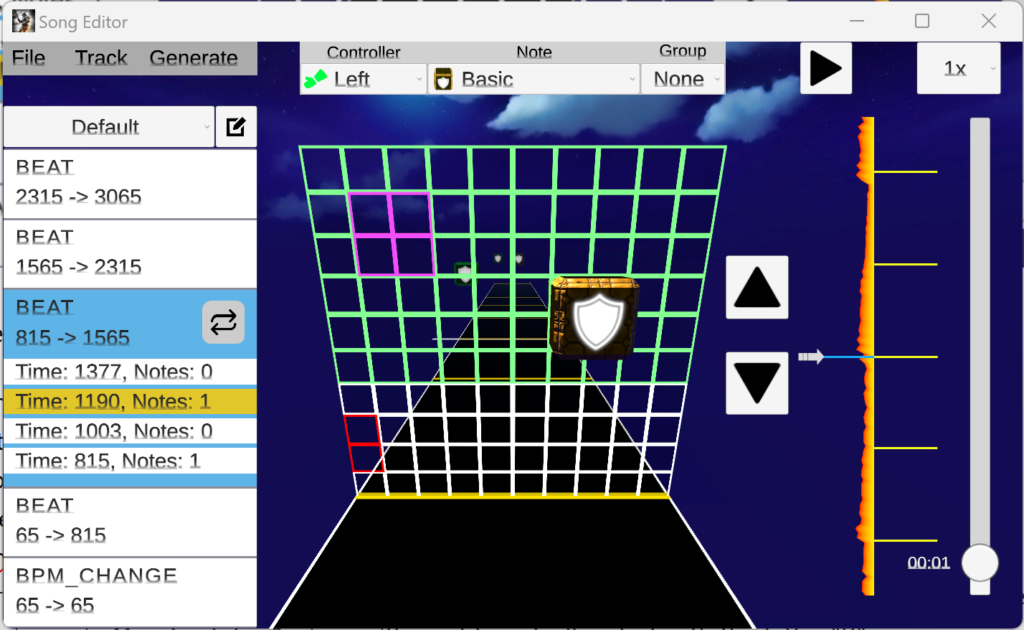
On the right side we have the timeline controls:
- Play/Pause button: Can be used to playback the song to hear if the Notes are placed on the correct NoteLine
- Speed dropdown: Can be used to change the playback speed. Making the playback slower can make it more easier to hear where the Notes should be placed.
- Arrow buttons: Can be used to move to previous or next Track event/NoteLine.
- Waveform view: This is a waveform representation of the audio at the current time
- Time slider: Can be used to quickly move through the song
General recommendations:
- Try to map the song completely using every dominant note you can hear. In other words create the most difficult song track first and after that simplify the track to create easier song tracks
- Find calm areas in the song. Those are good spots to add style or bpm change events.